Designing the Photo Layout for Most Days
The Problem: Fitting Multiple Photos into One Post
While building Most Days, our journal app, I wanted each entry to bring back the moment when I returned to it. The photos are a large part of that.
Putting one photo in an entry is straightforward. The interesting part starts when you add a few more.
In this post, there are people cooking, a portrait, and church towers rising behind us. Some pictures are wide; others are tall. Put them into identical squares and the page looks tidy, but parts of the place disappear.
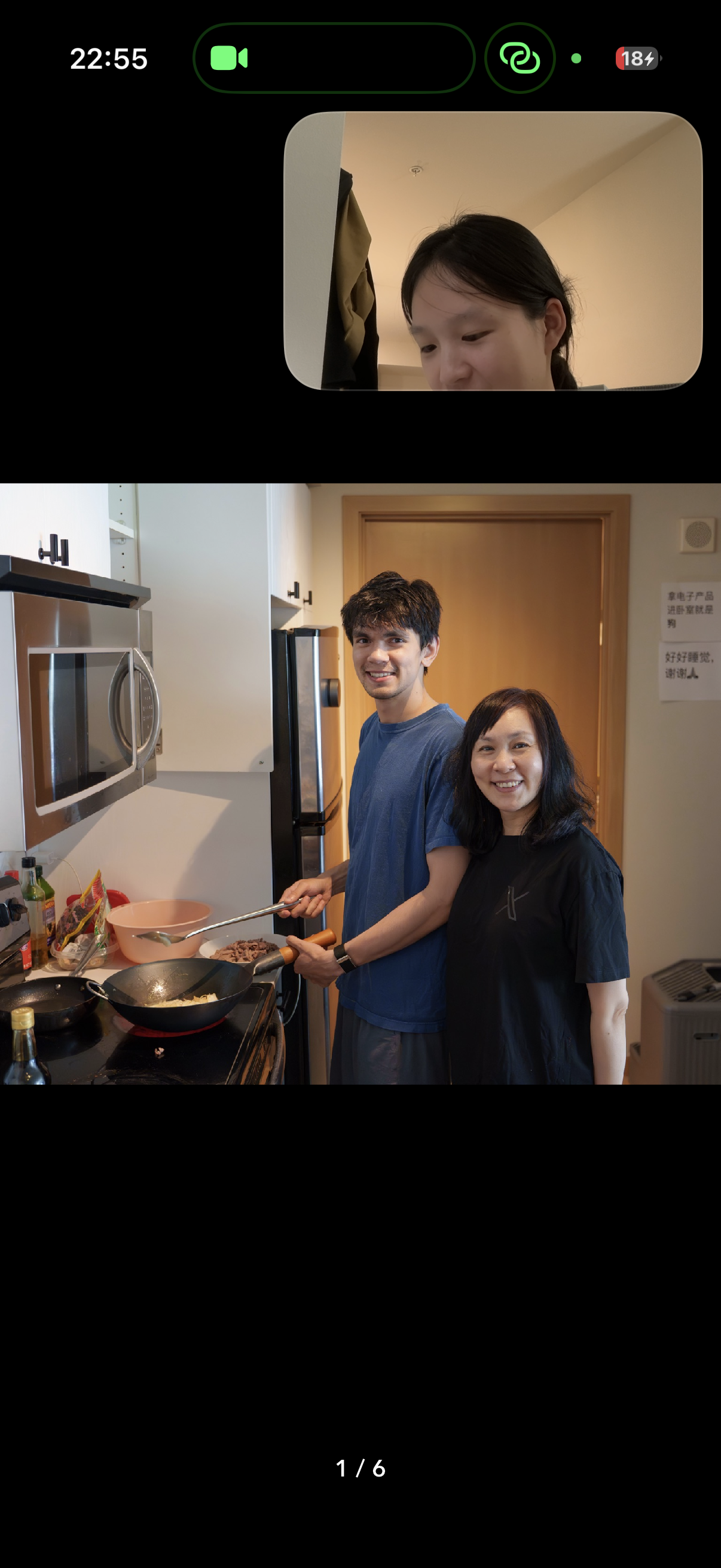
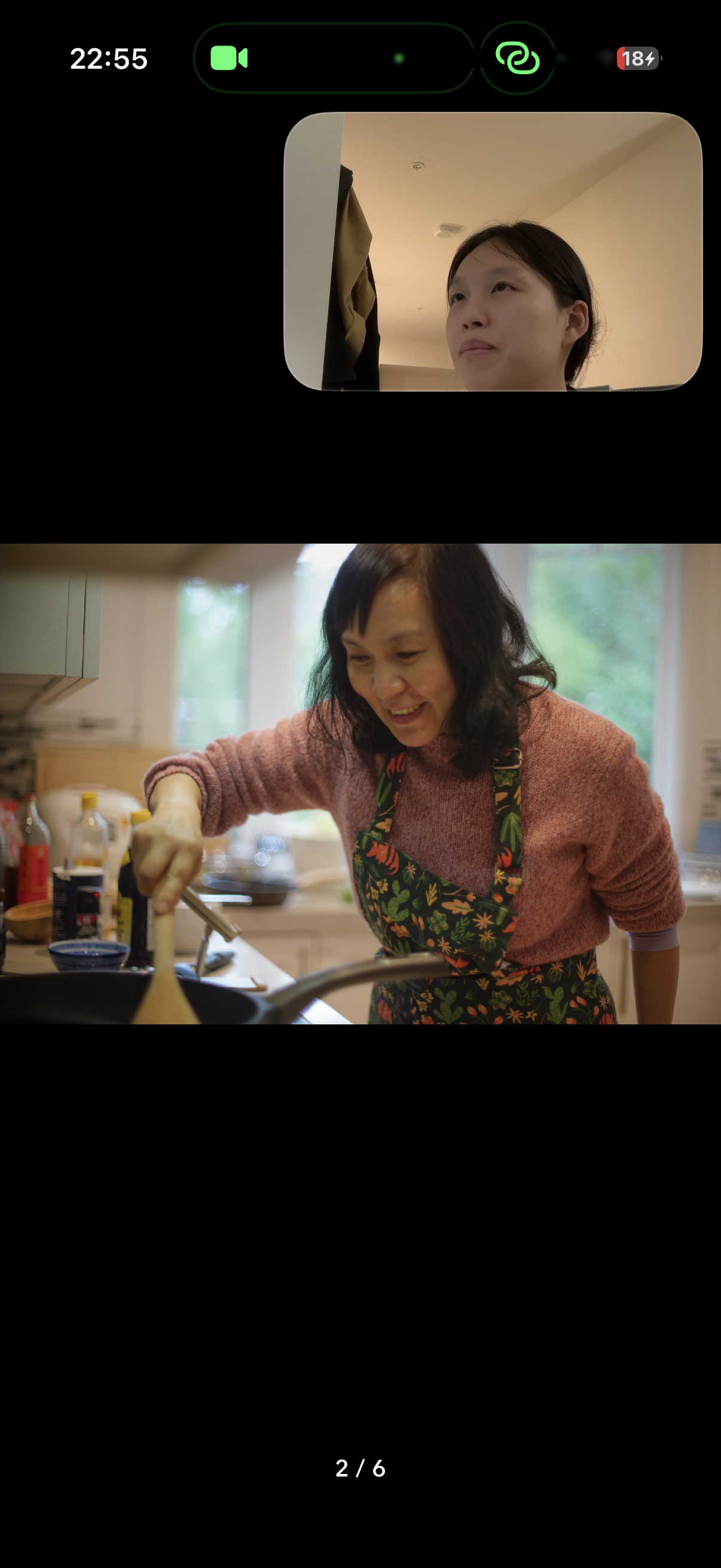
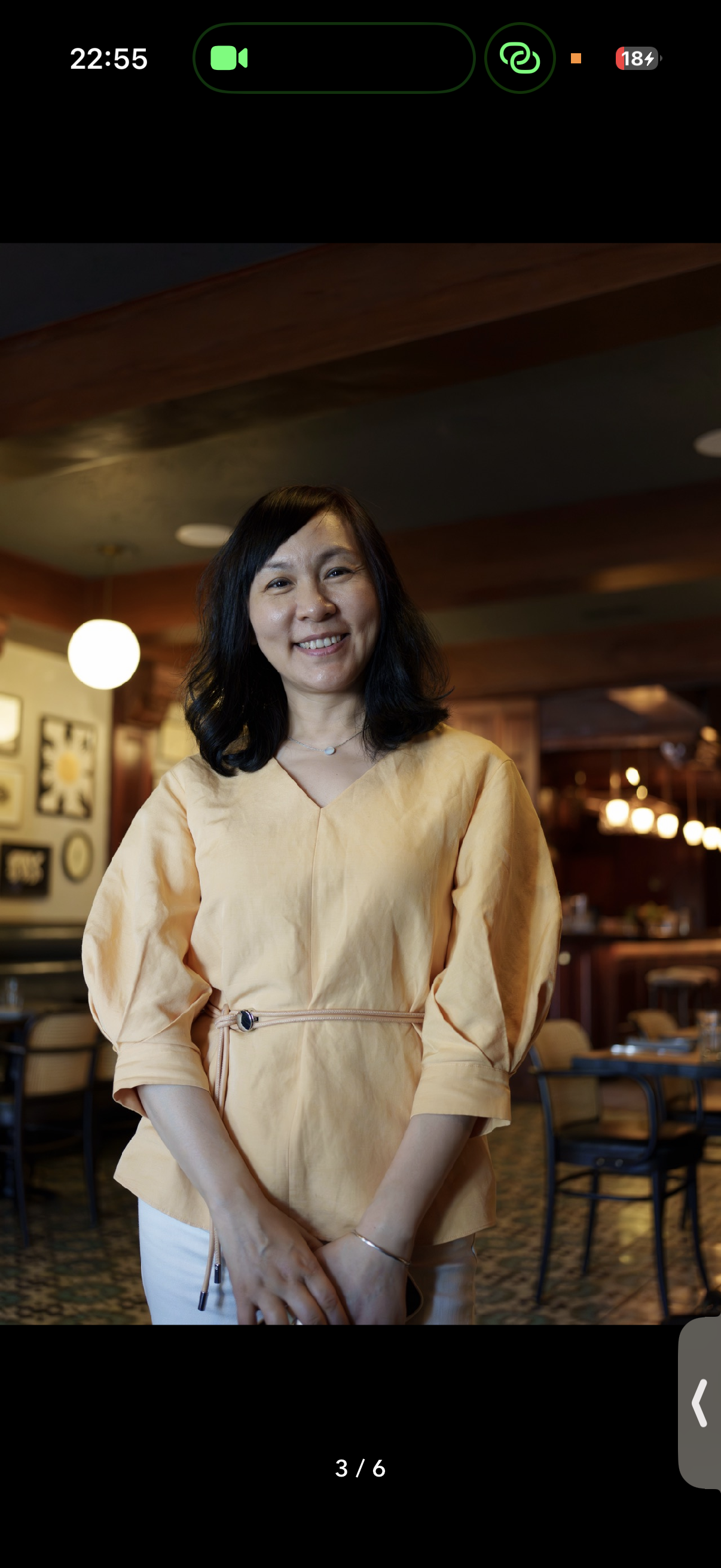
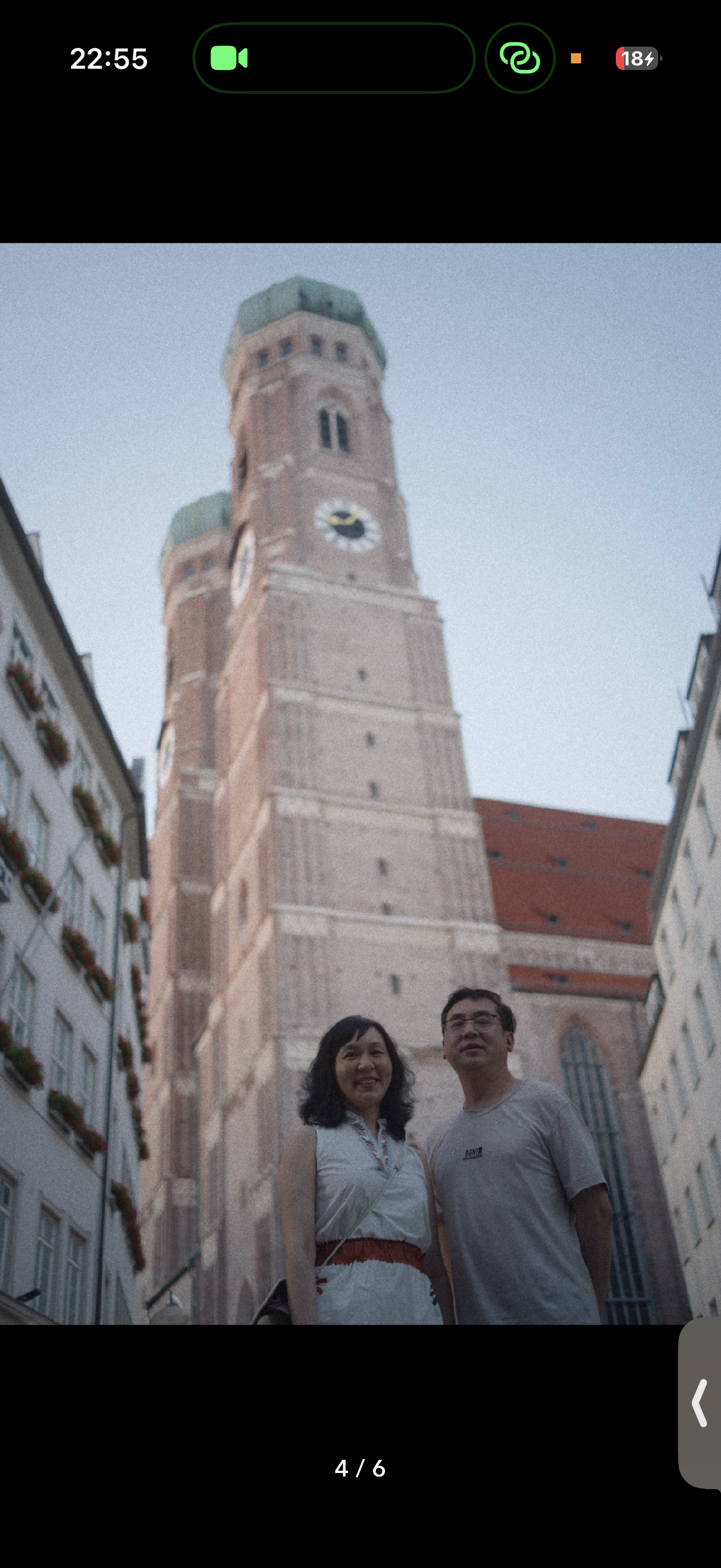
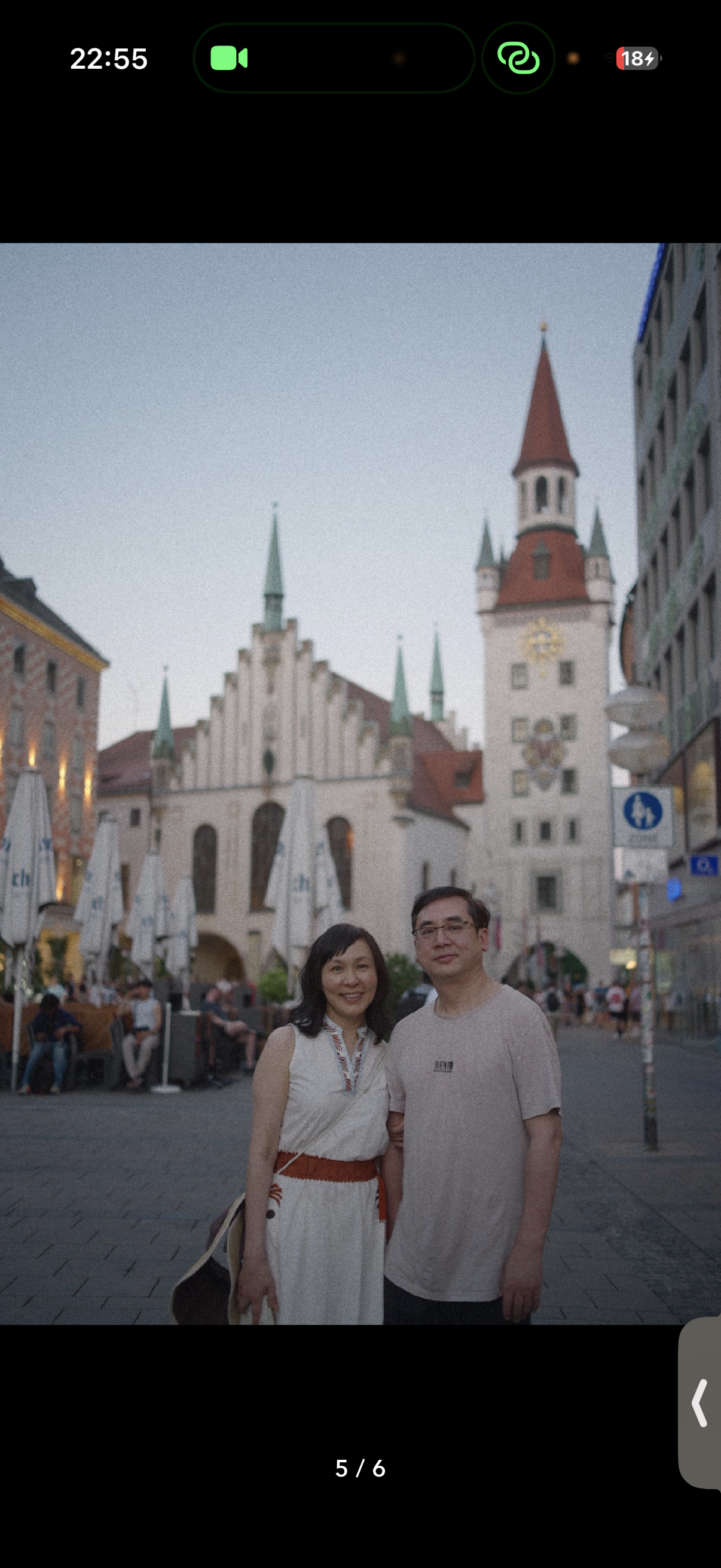
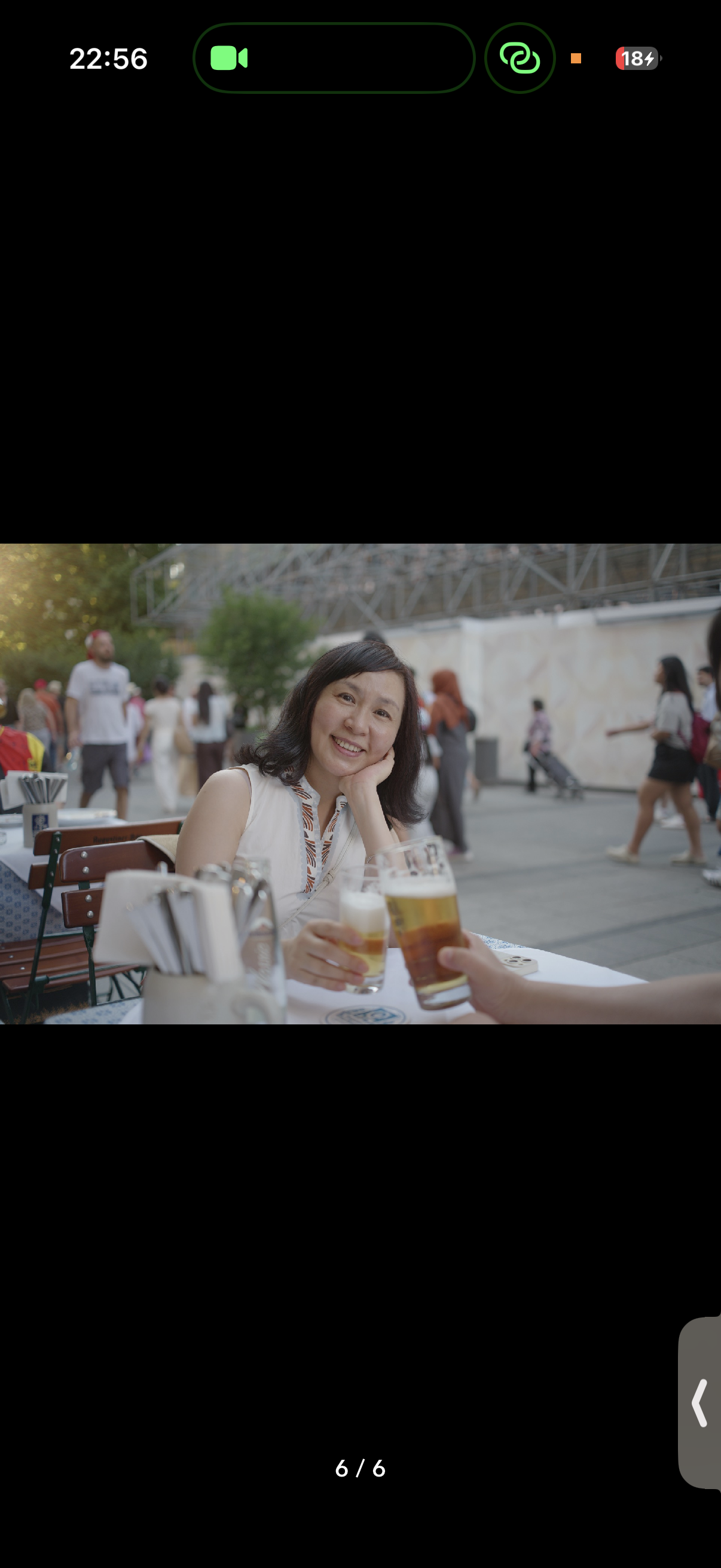
That left me with a question: what should a photo layout preserve?
Existing Apps: Layouts and Tradeoffs
There are already several good answers. Instagram gives each photo its own turn. Moments puts the collection in front of you at once. The difference is what each asks you to give up.
| Product / approach | What it gives you | What it costs |
|---|---|---|
| InstagramPaged carousel | A generous, consistent window for each photo. | The rest of the moment stays hidden until you swipe. |
| ThreadsHorizontal strip | Different photo widths, with a glimpse of the next image. | You still need to scroll sideways to see the collection. |
| WeChat MomentsSquare grid | Several photos visible together in a regular, compact layout. | Square crops lose surroundings; every image gets equal weight. |
| Apple JournalSquare lead + merged cells* | Several images establish a scene, with a larger lead photo. | Images are cropped to fit; smaller tiles lose detail. |
*Apple’s reference shows a square lead, with smaller or merged cells to its right. These are examples of layout approaches, not an exhaustive account of every app’s options.
Here are the same photos in each approach. Change the count and watch what happens to the scene.
Showing all 6 photos, in the same order.
 1 / 62 / 63 / 64 / 65 / 66 / 6
The kitchen, the city, the little things in between.
 1 / 62 / 63 / 64 / 65 / 66 / 6
The kitchen, the city, the little things in between.
 1 / 62 / 63 / 64 / 65 / 66 / 6
The kitchen, the city, the little things in between.
 1 / 62 / 63 / 64 / 65 / 66 / 6
The kitchen, the city, the little things in between.
Apple: 3–5 items follow official screenshots; 6 follows the author’s editor screenshot. Counts 1–2 are inferred.
Reference screenshots & sources
Apple’s December 2023 launch screenshot shows three- and five-item layouts with mixed attachments. The App Store screenshot below shows four photos: a square lead, one wide upper-right tile, and two lower-right squares. The six-photo arrangement follows an author-supplied Journal editor screenshot (September 28, 2026): the four-photo structure above, plus two wide photos in a bottom row. These are observed examples, not a complete algorithm for every app version.
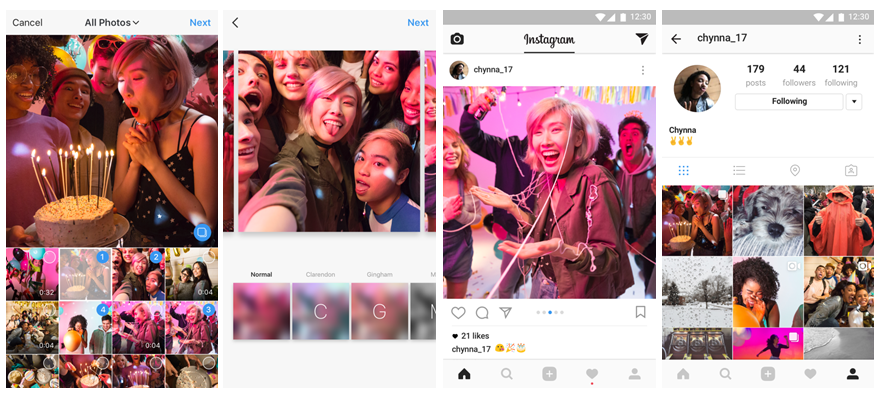
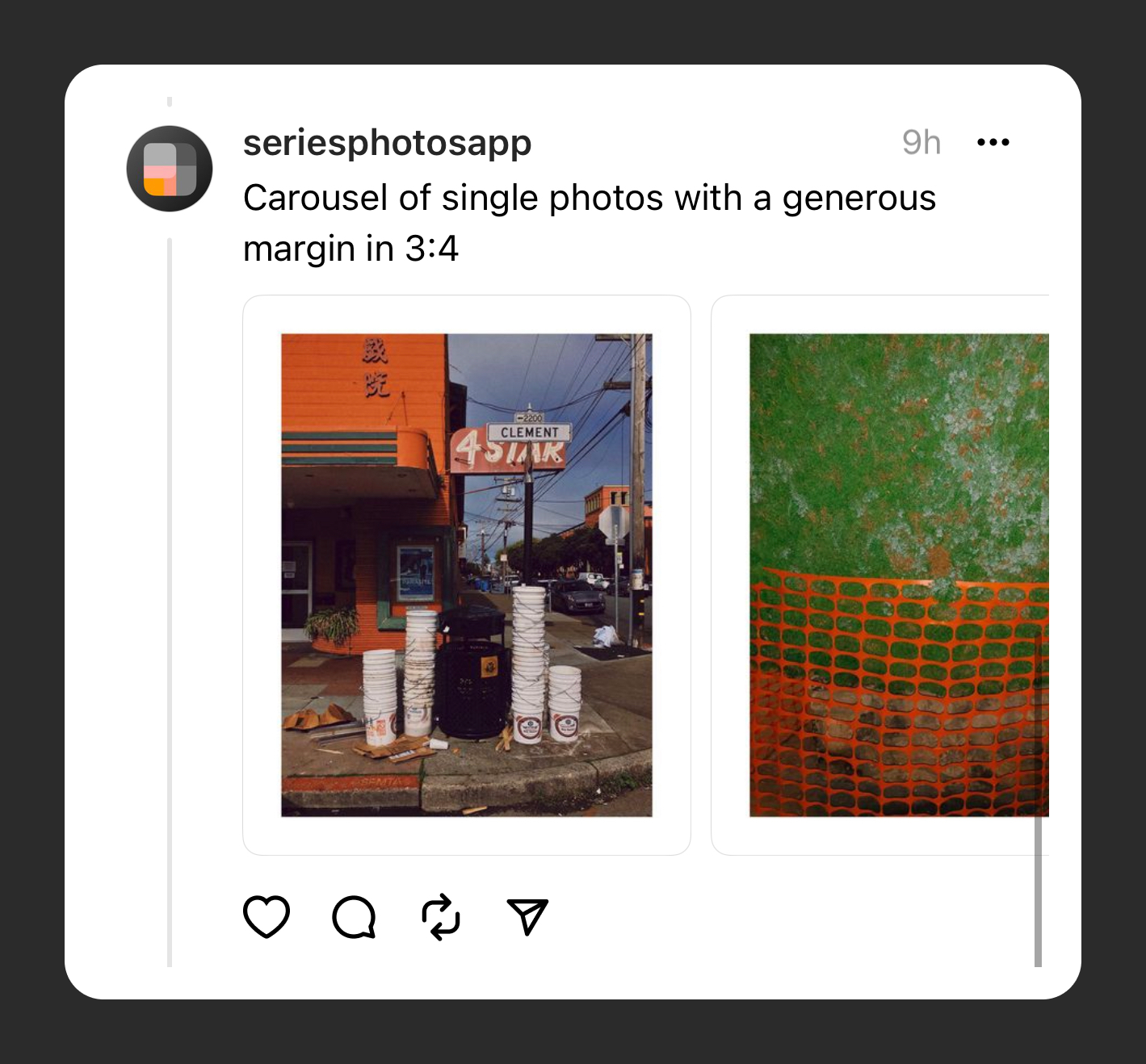
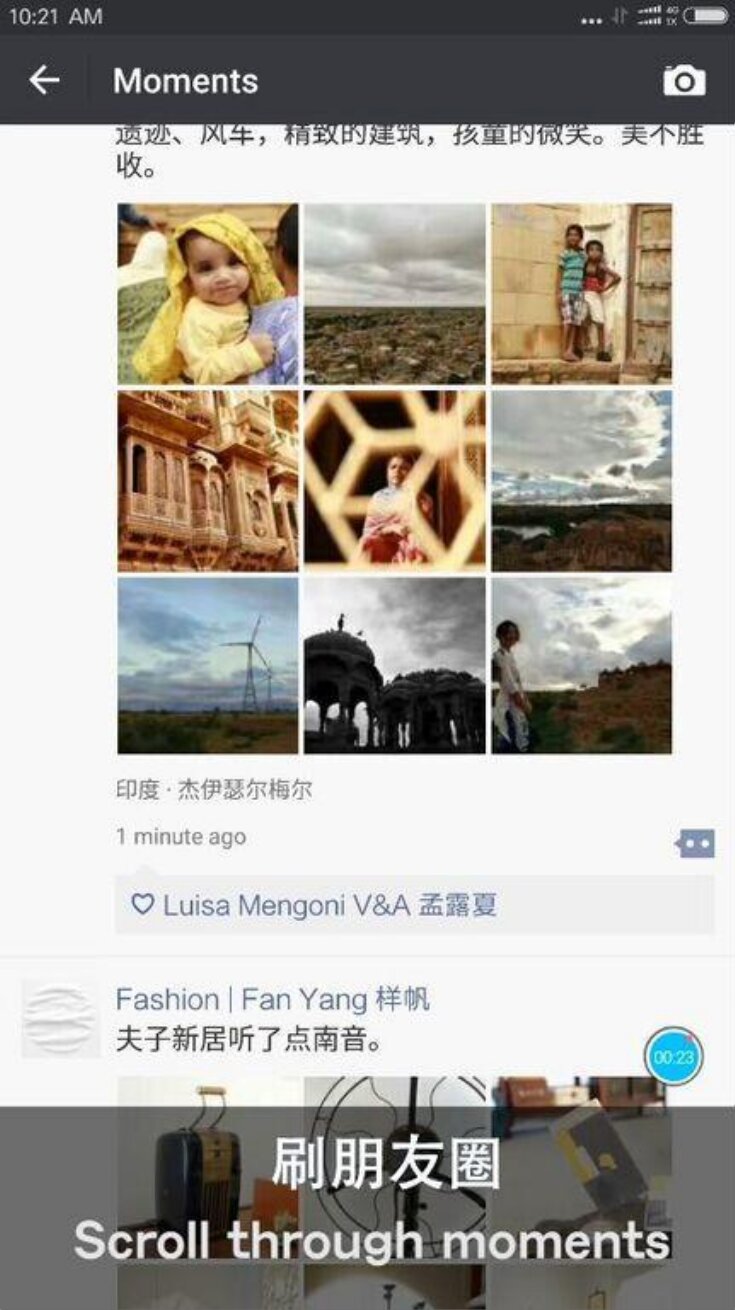
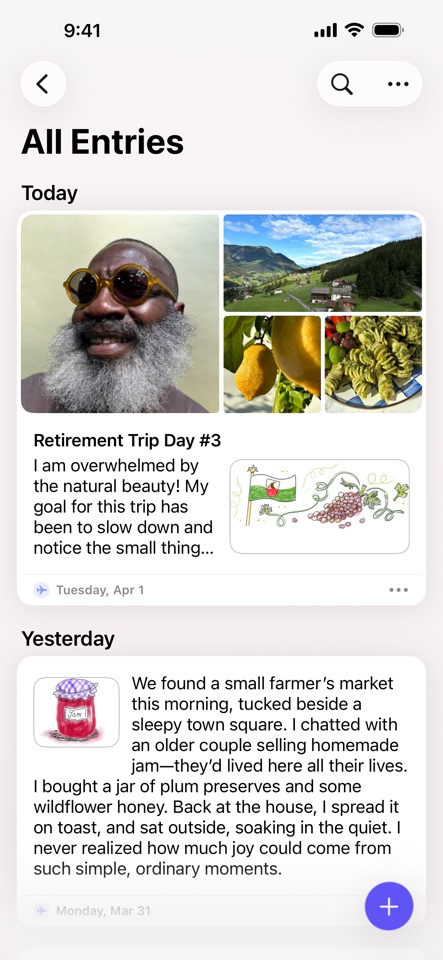
App icons are from the publishers' official App Store listings: Instagram, Threads, WeChat, and Journal. Moments is a feature inside WeChat, so it is identified here with the WeChat app icon.
Our Requirements for Most Days
When I scroll back through my journal, I want an entry to bring me back to that moment. Having to open it and swipe through the photos adds a small step, repeated for every entry I revisit.
For Most Days, our first requirement was simple: the photos should already be there. Tapping should let me look closer.
The framing matters too. Someone chose to turn the camera vertically to include those towers. I want the layout to respect that choice.
Our Solution: Choosing the Layout and Crop Ratios
Equal-sized photos make a grid easy to arrange. But that wasn’t one of our requirements.
We let the sizes vary instead. The first photo leads, the others keep their order, and each gets a frame suited to its orientation. We still crop, but a portrait doesn’t have to become a square just to fit beside a landscape.
To keep the results consistent, we choose from four landscape ratios and three portrait ratios. We try the combinations and prefer the whole collection closest to square; ties favor less cropping, then the balance of the smaller photos.
This demo treats the near-square first photo as landscape. The other photos use the app’s original classification rules.
Enable JavaScript to compare the candidate layouts and see the selected crop.
The outline shows what survives the centered crop. Some context is still lost; letting the photos have different sizes gives us more room to keep it.
Compare Most Days with Other Apps
Choose an app and 1–6 photos. Most Days is on the right, or below on mobile.
Look at the towers, the kitchen, and the space around the people. Those details are part of what I want to remember. The layout’s job is to make room for them.
Layout simulations, not exact app replicas. Apple: screenshot-based for 3–6 items (6 from the editor), inferred for 1–2. Most Days uses an experiment that treats the hero as landscape.
Showing all 6 photos, in the same order.
1 / 62 / 63 / 64 / 65 / 66 / 6The kitchen, the city, the little things in between.
 1 / 62 / 63 / 64 / 65 / 66 / 6
The kitchen, the city, the little things in between.